
How Company Certification Has Evolved
Ten years of BIM certification experience. Learn how ISO 19650 certification has matured, its business benefits, and when organisations are ready.


In January 2020, Excitech was acquired by Addnode Group, the owner of Symetri, Europe’s leading provider of software and services for design and engineering activities.
Excitech has now become Symetri, operating as one company since the beginning of January 2021. Please rest assured it is business as usual for us and your service experience will not be impacted.

There are two ways to create a 2D PDF drawing using the Bluebeam Revu Revit plug-in:

Note: The Bluebeam Plug-in does not support Phasing Graphic Overrides in the native model or linked models. If your material colours are not appearing as shown in Revit, you can edit or turn off the Phasing Graphic Overrides in Revit by going to Manage Tab > Phasing > Graphic Overrides.
The Bluebeam plug-in can also create 3D PDFs. To do so, select Create 3D PDF from the 3D menu in the Bluebeam ribbon. Note that you can also create a U3D file from this menu if desired. U3D files can be imported into Revu and other applications.
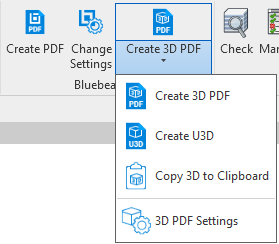
To configure the settings used to create 3D PDFs, select 3D PDF Settings from the 3D menu.

To edit the 3D Settings used to create 3D PDFs, select 3D PDF Settings from the 3D menu.
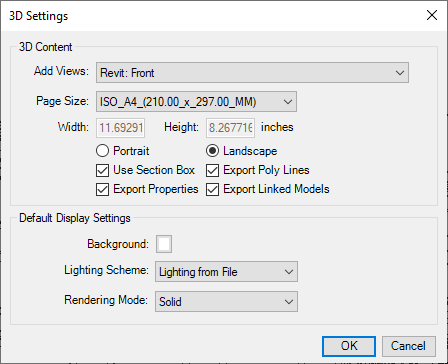
Add Views: Select the views to be included in the export.
Page Size: Select one of the predefine page sizes, or select <custom> to define custom width and height.
Width and Height: Only available when <custom> is selected as the Page Size.
Portrait/Landscape: Select the desired page orientation.
Use Section Box: Enable to export only what is contained within the sectioned box.
Export Properties: Enable to export object and material metadata.
Export Poly Lines: Enable to export poly lines used to represent elevation.
Export Linked Models: Enable to allow 3D exports to include model data from linked projects.
Background: Select a background colour.
Lighting Scheme: Select a lighting scheme to use in the exported file. By default, the lighting scheme of the source file is used.
Rendering Mode: Select a rendering mode for the exported file. For more information about rendering modes, search for "Rendering Modes" in the Revu help guide.
For more information about Bluebeam Revu, click here. Alternatively please feel free to contact us on 0345 370 1444 or email us at info@symetri.co.uk.
Ten years of BIM certification experience. Learn how ISO 19650 certification has matured, its business benefits, and when organisations are ready.

Digital transformation is reshaping the built environment, but successful change requires more than new technology. Discover how Symetri's approach to BIM, digital delivery and organisational change has earned four nominations at the 2026 Building Innovation Awards.
If you're new to Bluebeam Max or simply want to learn more about what it can do, we've gathered answers to the questions we're asked most often.