
What’s New in Inventor 2027: A Guide to the Latest Features
Consultant Jason Kelly explores the new 2027 features in Autodesk Inventor Professional. Including updates to the content center and Autodesk Assistant

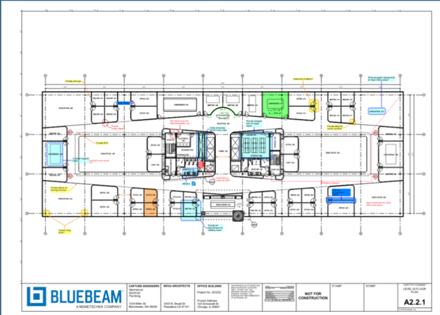 Bluebeam Revu is packed with powerful features that can dramatically improve efficiency in document review, markup, and collaboration. Whether you’re new to Revu or looking to sharpen your skills, these tips and tricks will help you unlock its full potential.
Hold Down Space to Bring Up the Hand
Instead of switching tools manually, hold down the Space bar to temporarily activate the Hand tool. This makes navigation quicker, especially when you’re zoomed in on a drawing.
Choose from Overlapping Selections
When multiple markups overlap, Revu lets you cycle through them by pressing Tab. This ensures you can select the exact markup you need without frustration.
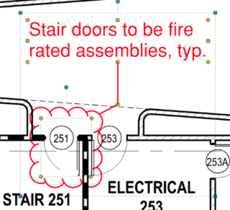 Hold Shift while editing shapes to add control points or arrows. This gives you more flexibility in customising markups like polygons or lines.
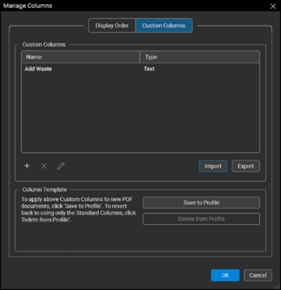 In the Markups List, you can create custom columns to track project-specific data, such as costs, status, or responsibilities. This adds powerful reporting capabilities.
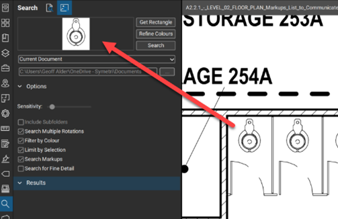 Revu’s Search tool can find and count numbers or symbols across a document. Combined with colour marking, this makes quantity takeoffs faster and more accurate.
Mastering these tips and tricks in Bluebeam Revu can significantly enhance your productivity and accuracy. From simple shortcuts like holding down the Space bar to advanced tools like Dynamic Fill and custom columns, each feature is designed to streamline workflows and improve collaboration. By incorporating these practices into your daily use, you’ll not only save time but also ensure your projects are delivered with greater precision and clarity.
Choosing Symetri for your Bluebeam licenses means gaining more than just software - you gain a trusted partner in your Digital Transformation journey. We provide expert training, guided consultancy, and ongoing support to ensure Bluebeam and other technologies are seamlessly integrated into your workflows. By combining technology solutions with strategic insight, Symetri empowers your teams to work smarter, achieve more, and accelerate progress. Partner with us to unlock the full potential of your investment and move confidently toward your future goals.
Consultant Jason Kelly explores the new 2027 features in Autodesk Inventor Professional. Including updates to the content center and Autodesk Assistant
In construction, the gap between the construction site and the office has always been a challenge. But by combining Bluebeam’s powerful PDF markup tools with GoCanvas’s mobile forms, companies can finally achieve seamless documentation that flows effortlessly from site to office.
Collaboration is the backbone of modern construction projects. Whether you’re reviewing drawings, marking up RFIs, or coordinating across multiple stakeholders, having the right platform makes all the difference. This blog reviews Bluebeam Studio (cloud-based) and Bluebeam Studio On-premise. While both enable teams to work together on PDFs in real time, the choice between them depends on your project requirements, IT policies, and security needs.