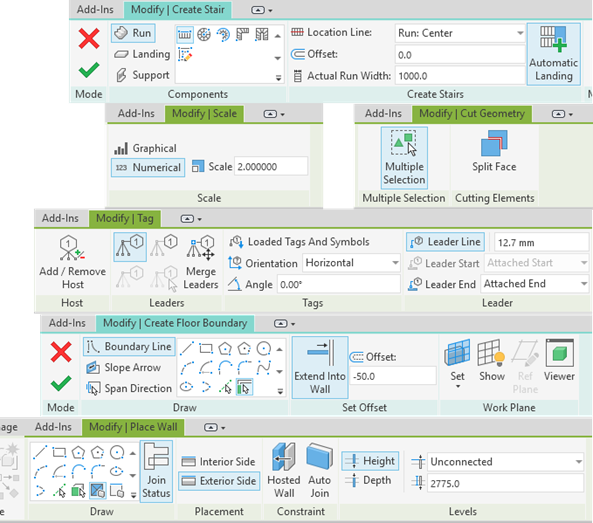
What’s New in Revit 2027: A Guide to the Latest Features

Autodesk’s Revit 2027 release introduces a range of updates to the core platform, with a particular focus on object numbering, automation, performance, and documentation workflows. This section outlines the main new features, including rule‑based numbering, AI‑assisted tooling in preview, and a series of incremental improvements aimed at supporting day‑to‑day production work.
What’s New in Revit 2027: A Guide to the Latest Features

This article covers:

  1. Rule Based Numbering
  2. Autodesk Assistant
  3. Options Bar Removal
  4. Multi-Category Tag Enhancements
  5. Leader Line Enhancements
  6. Linked Model Line Weights
  7. Accelerated Graphics
  8. Summary
  9. See Revit 2027's New Structural Features In Action
  10. Elevating Your Revit skills
  11. How to Stay up to Date With the Latest Autodesk Software Releases

Rule Based Numbering

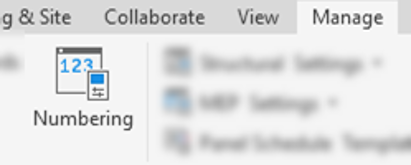
A feature that has long been requested is the ability to assign numbers, or identifiers, to objects based on defined criteria. Being able to specify a Level, Department, Room, or Type and then generate sequential numbers is fundamental to how elements are identified on most projects.

On larger projects, having hundreds of doors, windows, lights, or other elements identified only by a simple sequential number quickly becomes difficult to manage. Combining contextual information—such as a room number, level, or department—with a sequence, makes elements far easier to locate, coordinate, and reference across drawings and schedules.

Prior to Revit 2027, creating these types of numbering systems (often referred to as unique identifiers) required either manual input, object by object, or the use of dedicated third‑party add‑ins such as Naviate Architecture & Accelerate to automate the process.


Numbering Templates in Revit 2027

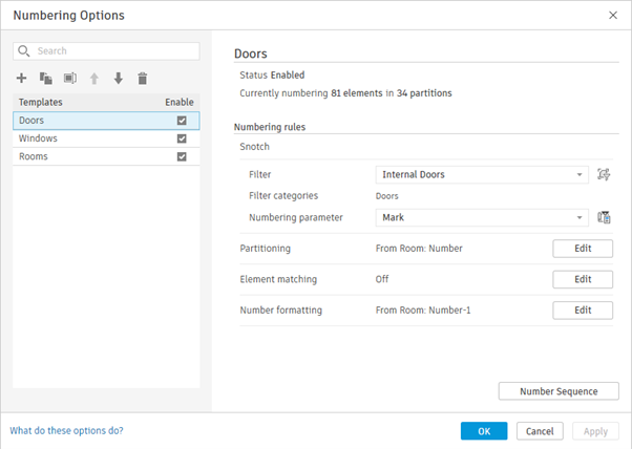
Revit 2027 introduces rule‑based numbering templates that automatically assign numbers to objects based on shared parameter values. Multiple rules can be created, with each rule defined as a Numbering Template. Available parameters vary by category, in a similar way to schedule creation.

The process begins by creating or selecting a Revit filter to define which objects are included. A target parameter is then chosen to receive the number, this may be the default Mark or Number parameter, or a custom shared parameter.


Configuring Numbering Rules

Once the objects and target parameter are defined, there are three main configuration options

  • Partitioning:
    • Controls how objects are grouped for numbering purposes. Objects sharing the same parameter values are grouped and numbered together. For example, rooms can be partitioned by Level or Department, meaning each group receives its own sequence. Multiple parameters can be combined, such as Level and Department, to further sub divide sequences. Partitioning is optional; if it is not used, all matching objects are assigned a single continuous sequence.
  • Element Matching:
    • Allows multiple elements to share the same number based on either identical geometry or matching parameter values. This is useful where elements need to be grouped by material, finish, specification reference, or location. Writing the result to a custom parameter supports these workflows.
  • Sequence Formatting:
    • Defines how the number itself is constructed. Sequences can use numbers or letters, with options to skip the first element or only apply numbering when multiple elements exist. Values from other parameters—such as Level, Type Mark, or Room Number—can be included, along with prefixes, suffixes, and a controlled order.

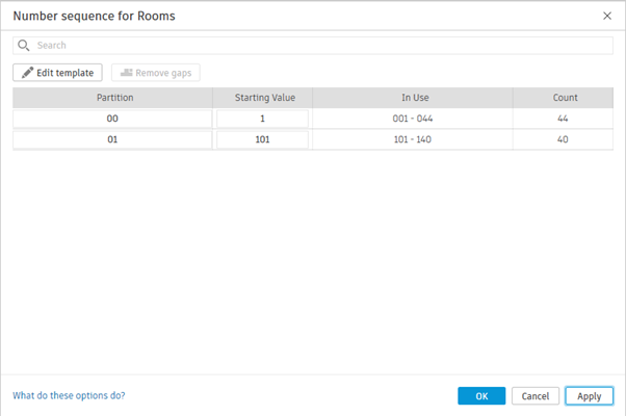
Each partition can also have its own starting value, allowing for example different levels to begin numbering from different points rather than all starting at “1”.

This feature is long overdue and will be extremely useful for implementing consistent, project‑specific numbering systems directly within Revit. However, one significant limitation remains, the order of sequential numbering is still driven by element creation order.

As with existing numbered elements such as doors, rooms, and windows, there is often a need to rationalise numbering once layouts stabilise. On large models, manually reordering hundreds or thousands of elements is time‑consuming and impractical. This limitation is precisely why renumbering add‑ins and Dynamo scripts remain so widely used.

While the new rule‑based numbering tools are strong for defining structure and grouping, the requirement to manually control sequence order means third‑party tools such as the Naviate Accelerate Renumber tool will still be necessary in many workflows.

Autodesk Assistant

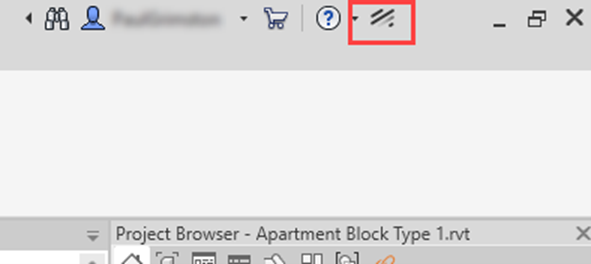
With Revit 2027, Autodesk introduces its first AI‑enabled functionality through the Autodesk Assistant tech preview. As a web‑based feature, it is subject to change without notice and may evolve between uses without requiring a product update. The Assistant is accessed via a new button next to the Help menu at the top of the interface.

When launched, the Assistant provides example prompts to indicate its current capabilities, which include:

  • Model querying and analysis
  • Views and visualisation
  • Element modification
  • Schedules
  • Sheets and documentation
  • Rooms and spaces
  • Revit help and how‑to questions

Autodesk also provides guidance on the Assistant’s intended scope. When asked about its limitations, the Assistant returns a lengthy list of tasks it cannot currently perform, followed by a clear summary of where it is designed to be most effective:

“What I'm best at: querying your model, analysing elements, modifying parameters, creating views and schedules, organising documentation, and answering how‑to questions about Revit workflows.”

This clarification usefully sets expectations, positioning the Assistant as a tool for model querying, coordination, and light automation rather than full model authoring or more complex decision‑driven workflows.

Once familiar with its range of capabilities, the Assistant can be genuinely useful, but effective use depends on writing clear and specific prompts. Requirements such as naming and numbering conventions must be explicitly stated, particularly when creating views or sheets. More complex tasks often need to be broken into multiple steps for example, creating sheets first and then issuing follow‑up prompts to change title blocks or adjust naming and numbering.

The potential of the AI‑driven Assistant is significant, but it needs to be tested carefully against real projects and workflows. One area where it may add value is in model checking and data aggregation tasks, such as:

  • Verifying whether COBie parameters have been completed
  • Checking that parameter values follow the correct format
  • Populating parameters by combining values such as Room Number, Type Mark, and a sequential identifier
  • Highlighting elements where required data is missing or incorrect
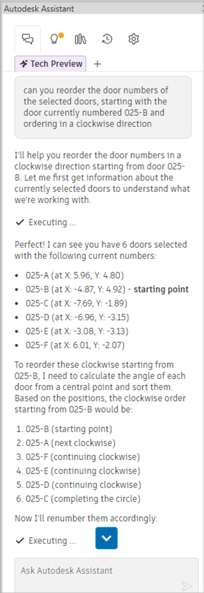
Whether the Assistant can replace established add‑ins and scripted workflows remains debatable. Experienced Revit users can often complete the same tasks just as quickly. if not quicker, using familiar tools, and purpose‑built add‑ins with task‑specific interfaces are likely to remain more efficient for repeated use than continually re‑prompting an AI tool.

The Assistant also relies entirely on standard Revit functionality. It cannot load families or perform broader model edits, and actions such as tagging or view placement are carried out using existing Revit tools.

For less experienced users, the Assistant may provide a quicker way to find answers to common questions than searching documentation or online resources.

Overall, it feels like a sensible first step, pitched at an appropriate level given current industry caution around AI. As with any AI‑based tool, its outputs should be reviewed carefully, and it should not be relied upon for business‑critical tasks. Each team will need to assess where it meaningfully reduces time spent on their most repetitive or time‑consuming activities.

Options Bar Removal

This change has been phased in over several releases, and in Revit 2027 the options bar has now been fully removed. All tool options are accessible via the ribbon or the Properties palette.

Multi-Category Tag Enhancements

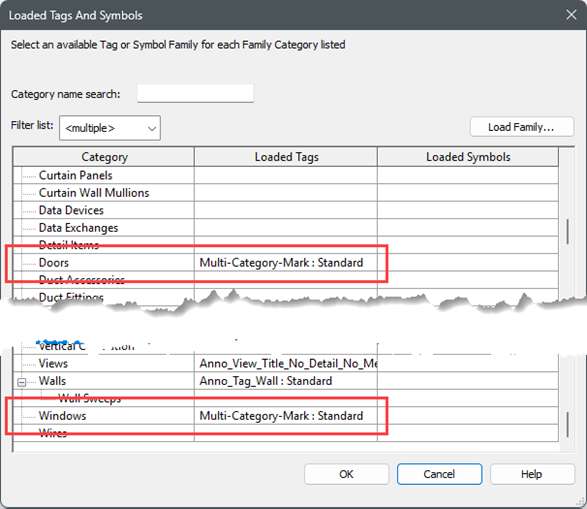
Multi-Category Tags can now be specified as the default tag for objects via the Loaded Tags and Symbols setting. This means that the multi-category tag would then be used by the Tag by Category and Tag All Not Tagged tools.

It’s a small change but will make a welcome difference to tagging workflows. For instance one multi-category tag family can be used instead of having to create and load many similar tag families for individual categories.

Also a multi-category tag could be created to display the Mark parameter and then be used for both doors and windows, plus anything else that needed to have its Mark tagged on a drawing.

Leader Line Enhancements

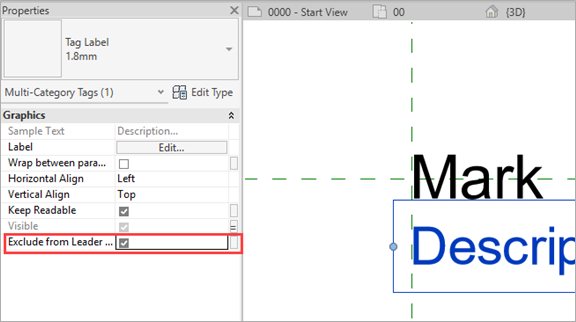
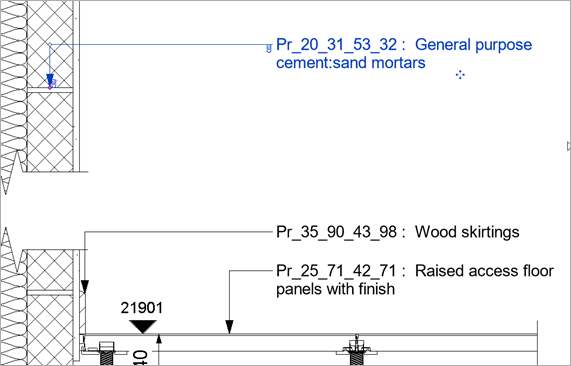
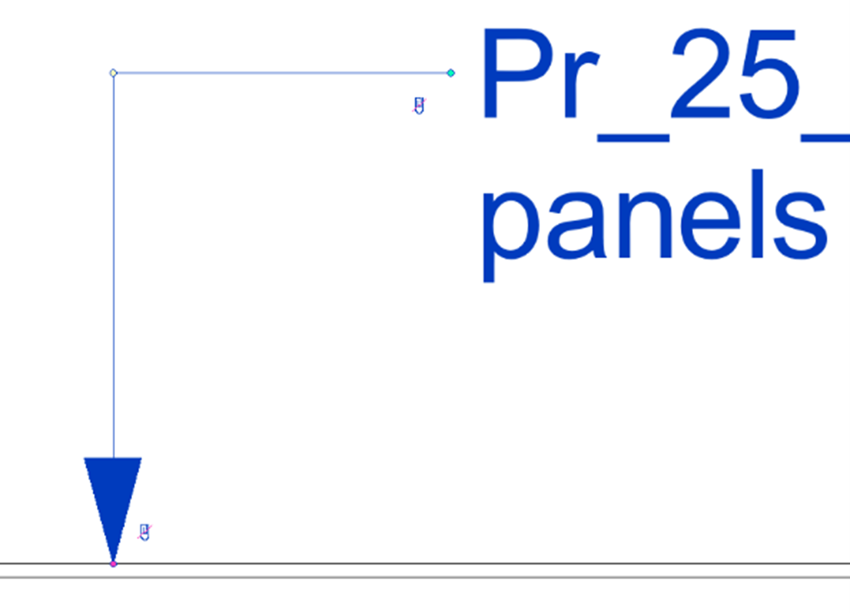
Tag families now have more control over the leader line placement. The elements in the tag family can be excluded from the leader line geometry, meaning that the leader will ignore that element when placing a leader line automatically. This helps when labels are hidden in some family types and allows the leader to attach to the main label information.

There are also new controls over the start and end snapping of the leader lines. When a tag is selected in the view, the start and end of the leader can be unclipped and repositioned on screen making tags easier to be placed consistently, leading to a better, more professional output.

Linked Model Line Weights

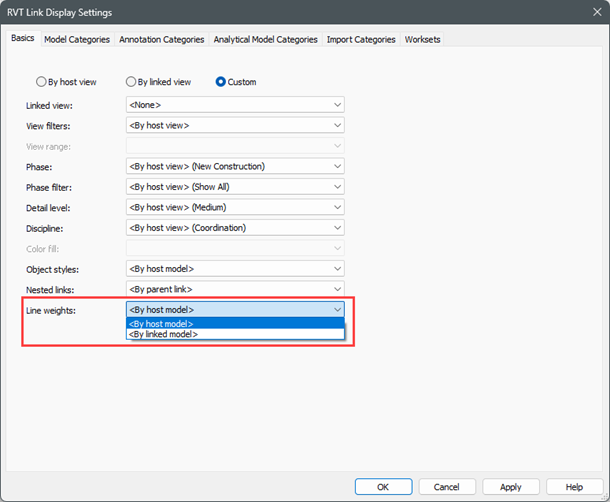
Managing line weights in linked models has been a frequent issue, especially where linked standards differ from those of the host model. Revit 2027 introduces the option to apply the host model’s line weight table to linked models via Visibility/Graphic Overrides, either per view or through view templates. While useful, the lack of control over individual line weights means this may not suit every situation.

Accelerated Graphics

The accelerated graphics that have been present since 2025 have been further improved to support more features. The performance increase with the GPU enabled graphics is quite significant, especially when working on large models.

One specific feature on 3D views worth investigating is the section box working in real time. This makes it much easier to get the 3D section exactly where you want it rather than having to approximate it and re-adjust as is the case with the standard graphics.

Further information on suitable hardware for Revit and GPU‑accelerated workflows can be found on our workstation recommendations guide here.

Summary

Revit 2027 delivers a set of targeted updates aimed at improving core modelling, documentation, and performance workflows, while introducing early AI‑assisted functionality through the Autodesk Assistant tech preview. Key changes include long‑awaited rule‑based numbering, refinements to tagging and leader behaviour, improved control over linked model graphics, and further enhancements to GPU‑accelerated performance. While some features remain iterative or exploratory, this release focuses on practical, day‑to‑day productivity gains and lays groundwork for more automated and data‑driven workflows in future versions of Revit.

Elevate Your Revit Skills

To support these new Revit 2027 capabilities, now is a great time to take advantage of our training opportunities. Whether you’re looking to refine your core Revit skills or deepen your capabilities, we’re offering an exclusive 25% discount on any Revit training course booked before 1st June.

When booking a training course on our website, please use the discount code: AUTODESK27

This is also an ideal opportunity to explore how complementary tools and structured workflows can enhance your Revit environment.

If you have any questions or would like help choosing the right training option, please contact us.

EXPLORE MORE AUTODESK 2027 SOFTWARE RELEASES

Contact Us

Need help deciding whether you should upgrade to the Revit 2027 releases or need more help understanding how they can fit into your workflows? Get in touch below! 

You can also call us on 0345 370 1444  or email info@symetri.co.uk


What’s New in AutoCAD 2027: A Guide to the Latest Features

25 March 2026

AutoCAD 2027 introduces new tools to improve collaboration, drawing accuracy, and productivity, including Autodesk Forma data management integration, Geometry Cleanup, and the AI‑powered Autodesk Assistant. In this guide, we highlight the key AutoCAD 2027 updates and explain how they support more efficient, connected workflows for design teams.

What’s New in Revit Structure 2027: A Guide to the Latest Features

25 March 2026

Autodesk's 2027 release continues its focus on deepening Revit's structural capabilities, with meaningful updates across reinforced concrete, analytical modelling, and steel detailing. Here's a technical breakdown of what's changed and what it means for your workflows and productivity.